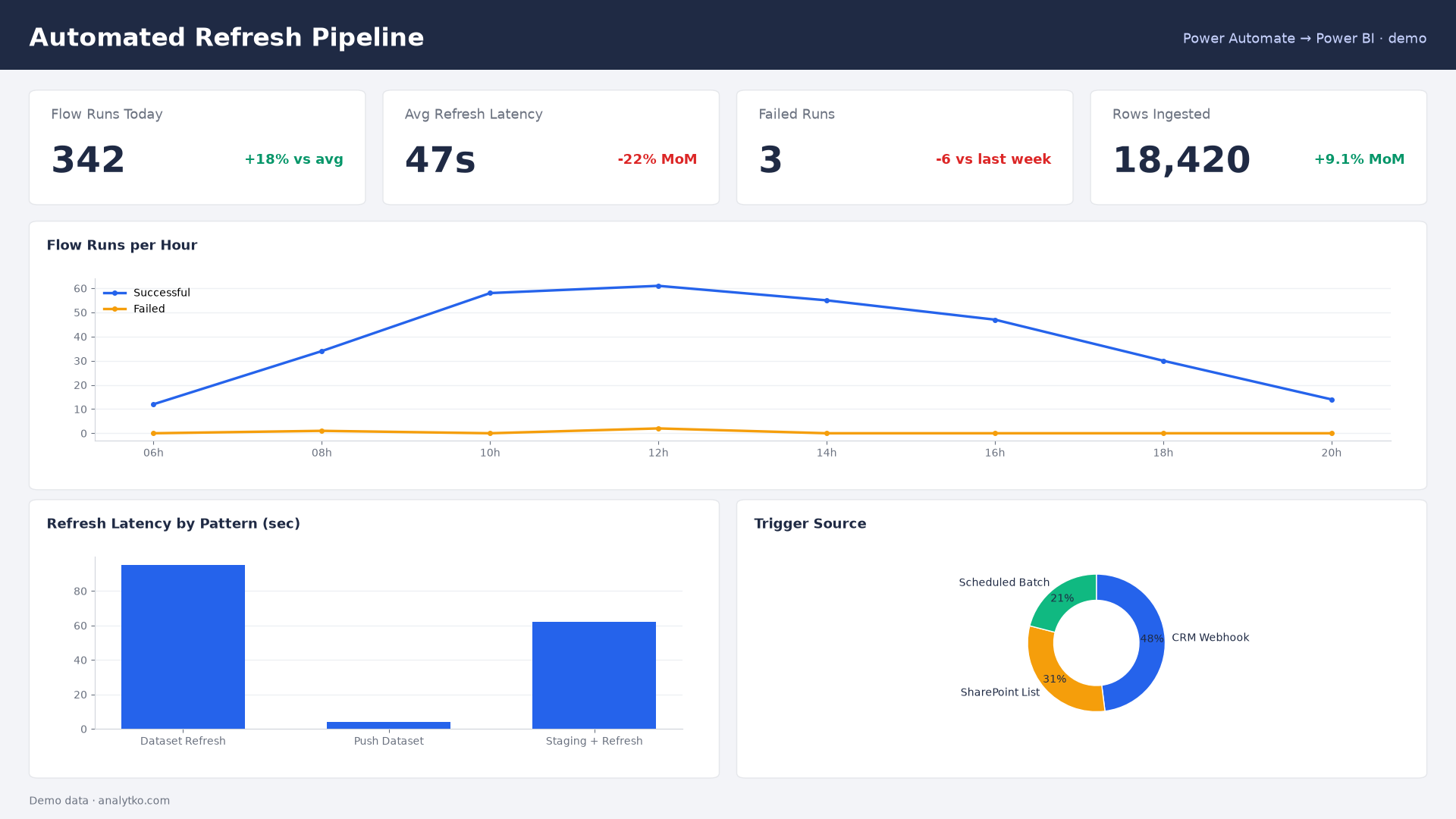
A recurring request we see from clients is simple to describe and messy to build: "Every time a new record shows up in our system, can the Power BI dashboard just update itself?" The dashboard is rarely the hard part. The hard part is the pipe that feeds it. That pipe is exactly what Power Automate is good at, and it connects to Power BI in three different ways depending on what "update itself" needs to mean.
Why Power BI alone isn't enough here
Power BI has scheduled refresh, but it only pulls from sources it already knows how to reach, on a schedule you set (as often as every 30 minutes on Pro, or near-real-time with Premium/Fabric). It can't react to an event — a new row in a CRM, a form submission, a file dropped in SharePoint — the moment it happens. That reaction is a workflow problem, not a reporting problem, so it belongs in Power Automate, which then either drops data where Power BI already looks or tells Power BI to go look now.
Pattern 1 — Trigger a dataset refresh on an event
If your Power BI report already points at a database, SharePoint list or Excel file, you don't need to touch the model. You just need refreshes to happen more often, right when new data lands, instead of on a fixed clock.
- In Power Automate, use a trigger that fits your source: "When an item is created" (SharePoint/Dataverse), "When a new email arrives," or a webhook from your CRM.
- Add the action Power BI – Refresh a dataset, pick the workspace and dataset.
- Add a short delay or a condition if the source system needs a moment to settle (e.g., waiting for a batch of rows instead of firing per row).
This is the lowest-effort option and works with Pro licensing. The catch is Power BI's own refresh limits: Pro datasets are capped at 8 scheduled refreshes a day through the UI, but on-demand refreshes triggered by an API call (which is what the connector does under the hood) don't count against that quota the same way — still, don't fire it on every single row if your source produces hundreds of events an hour. Premium or Fabric capacity removes the practical ceiling.
Pattern 2 — Push rows straight into a streaming dataset
For dashboards that need to look live — a support queue, a production line, order volume during a sale — refreshing a whole dataset is overkill. Power BI has a push/streaming dataset with its own REST endpoint that accepts rows directly, no refresh needed; the visual updates within seconds of the call.
- Create a streaming or push dataset in the Power BI service (My workspace or a normal workspace) and define its schema (columns and types).
- Power BI gives you a POST URL for that dataset.
- In Power Automate, use HTTP – POST (or the built-in Power BI – Add rows to a dataset action if the dataset is push-enabled) with a JSON body shaped like the schema, wired to whatever trigger produces the event.
The tradeoff: push datasets support only a subset of visuals and DAX (no complex relationships, limited calculated columns), and rows age out unless you also store them somewhere durable. Treat it as a live layer on top of your real model, not a replacement for it.
Pattern 3 — Land the data, then let Power Query pick it up
The most robust pattern, and the one we use most on client projects, doesn't call Power BI at all. Power Automate's job is just to get new data into a place Power Query already trusts — a SharePoint list, a table in Dataverse, a row in Azure SQL, a file in a folder — and Power BI's normal scheduled refresh (Pattern 1's trigger optional) picks it up from there.
// Power Query step reading the landing table Power Automate writes to
let
    Source = Sql.Database("your-server.database.windows.net", "reporting"),
    StagingTable = Source{[Schema="dbo", Item="AutomationStaging"]}[Data],
    Filtered = Table.SelectRows(StagingTable, each [ProcessedDate] <> null)
in
    Filtered
This keeps the two systems loosely coupled: Power Automate never needs to know about your data model, and Power BI never needs to know an external workflow exists. It also survives schema changes better, because the staging table is a normal, inspectable table instead of a live API contract.
Picking between the three
- Use Pattern 1 when the source is already something Power BI can refresh, and "a few minutes late" is fine.
- Use Pattern 2 only when the visual truly needs to move in near real time and a simplified model is acceptable.
- Use Pattern 3 as the default for anything that needs to survive over time, get audited, or combine with other tables — it's more setup, but far less fragile.
A word on limits and cost
Power Automate runs consume a licensed flow run quota, and each HTTP/Power BI action in a flow counts as a step against your plan's daily run limits. For anything firing per-row at high volume, batch the trigger (e.g., "once every 15 minutes, process new rows since last run") instead of one flow run per event — it's both cheaper and easier to debug when something breaks.
None of these patterns require Premium capacity or a data engineer to stand up. What they need is deciding, up front, whether the dashboard has to be live-live or just fresher than "tomorrow morning" — that single decision determines which of the three patterns above is worth building.